Editing a Character Outfit: How to Choose a Mask and Review the Result
An outfit variant can preserve a useful character pose while changing armor, a coat or colors. The difficult part is drawing a mask large enough for the new garment without unnecessarily exposing the face or protected equipment to edits. Plan the intended silhouette before painting the selection.
Disclosure: This article was prepared with AI assistance by the FrameSprite team, which operates the product discussed below. Product behavior described here is limited to the documented local static edit; inspect your actual result.
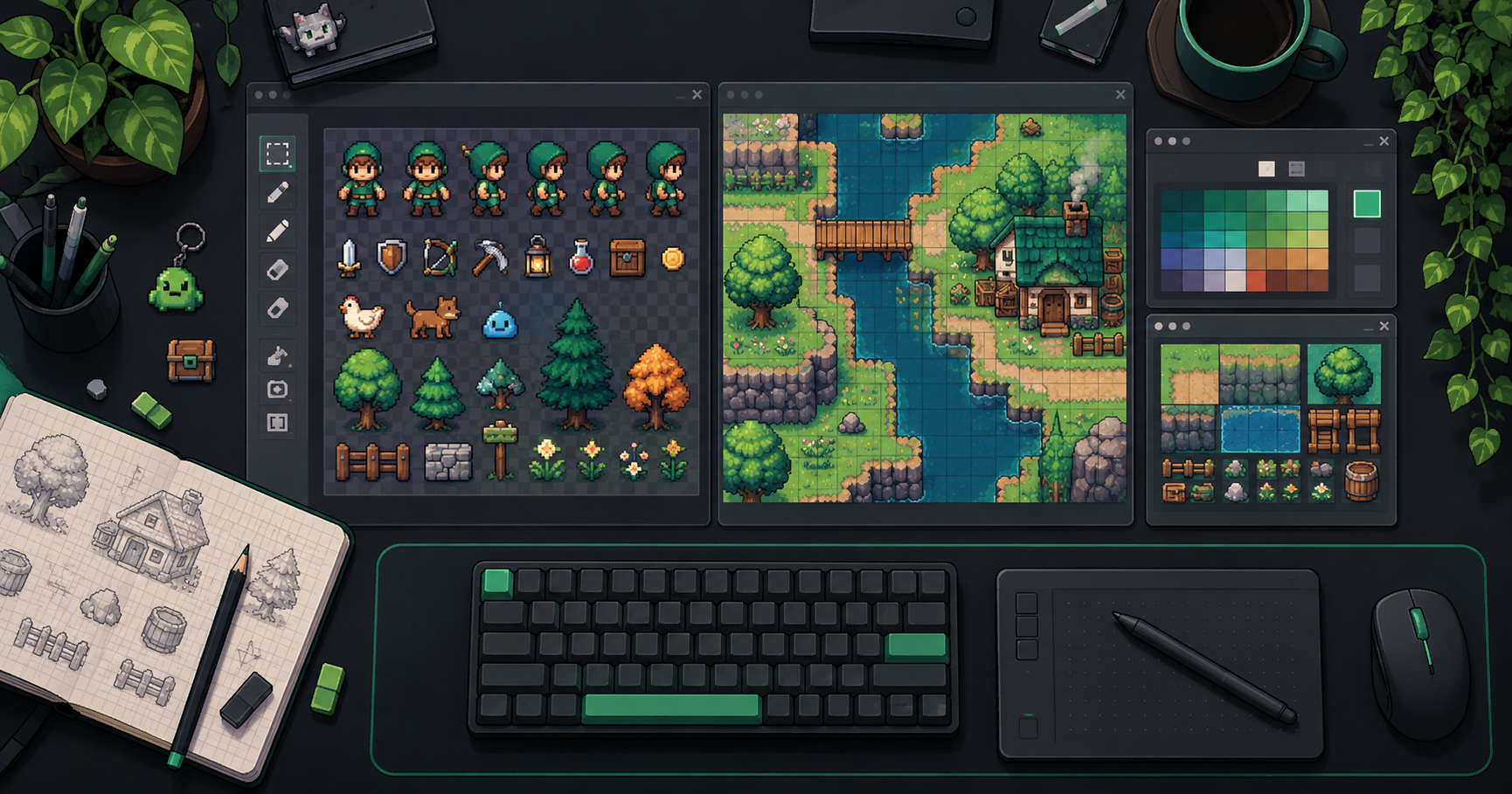
Cover: AI-generated concept illustration of a game-art workspace. It does not show an actual outfit edit or the selection described below.
Key takeaways
- Include the space needed by the new outfit silhouette.
- Protect and compare the face, hair and equipment.
- Treat later generated animation as a separate review.
Prepare a complete master
Choose an image you have rights to use and save a copy before editing. Check that the full character, feet, headwear and any important equipment are visible. If a weapon is already cropped, an outfit edit is not a reliable repair method.
Write a concise change request: “Replace the short tunic with a long blue coat; retain the face, hair, brown boots and sword.” This establishes both the change and the protected details. A prompt can express intent, but it does not substitute for a precise mask and visual review.
If the request starts from an automatically inferred description, review the image-to-prompt result first. A mistaken description of the sword or coat can become an unwanted instruction.
Include the space the new garment needs
If the new coat extends below the old shirt, selecting only the original shirt leaves no room for the longer hem. Include the clothing and adjacent empty space that the new silhouette must occupy. Exclude the face, hair, weapon and other protected details when possible.
For a cape that must pass behind a sword or occupy already crowded space, a mask alone may not resolve the overlap. A different pose, a separate layer, or manual cleanup may be needed. Painting over the sword creates a different risk: the model may alter it along with the outfit.
A local-edit workflow may preserve pixels outside its mask, depending on the tool and mode. Check the current documentation and compare the actual result. A static edit does not guarantee protection for a later generated animation: the FrameSprite animation recovery guide makes that distinction explicit. A mask does not guarantee that the requested outfit will appear correctly inside it.
A worked mask plan for the blue coat
This is a hypothetical planning example, not a generated result or a test of a particular model. Assume a guard whose short tunic ends at the waist. The proposed blue coat should end above the boots. The sword sits beside the body, and one hand crosses the waist. The face, hair, hands, boots and sword must remain unchanged in the approved still.
The diagram describes regions rather than exact pixel locations. M is the existing garment to select, E is extra space the longer coat needs, and P marks details to protect and compare.
                 [P: face and hair]
 [P: sword]      [M: short tunic]    [P: hand]
                 [E: coat space]
                 [P: brown boots]

 Proposed selection: M + E, excluding every P region
Start by identifying the intended coat outline on a copy of the master. Select the tunic plus the space down to that outline. Leave the protected hand as an excluded island if the editor supports that selection. If the coat must cover the hand, the requirements conflict: choose whether the hand may be redrawn, change the coat shape, or use a layered/manual workflow before generating.
Use a small review record so a failed candidate leads to one specific change:
| Region or condition | Acceptance target | Possible failure | One change to try next |
|---|---|---|---|
| Coat below the old waistline | Hem reaches the planned outline above the boots | Coat stops at the old tunic edge | Expand only the lower selection into the required space |
| Hand crossing the waist | Same hand and grip remain recognizable | Selected fingers are redrawn or merged into the coat | Exclude the hand from the selection, if the editor permits it |
| Sword beside the body | Blade, grip and placement match the master | Sword changes where it overlaps the selection | Remove the sword overlap from the mask; reconsider the coat outline if that blocks it |
| Boot boundary | Coat ends cleanly without repainting the boots | A strip of old tunic or an awkward seam remains | Adjust only the boundary responsible for the seam |
These are possible outcomes and proposed corrections, not observations. Keep the first mask and candidate, then save the revised mask as a new version. If changing the mask also requires a new prompt, record both changes; that comparison no longer isolates the mask alone.
Review the output in three passes
1. Protected regions. Compare the face, hair, boots and weapon with the master. A local boundary can protect outside pixels, but an important object partly inside the mask still needs inspection.
2. Garment construction. Look at the neckline, sleeves, belt and hem. Does the new coat attach plausibly to the body? Is the intended color consistent? Is an edge awkward where the edited area meets unchanged pixels?
3. Practical use. View the character at the intended game size. An elaborate buckle may disappear at that size, while a high-contrast coat might make the silhouette more readable. The acceptable answer depends on the game's visual style.
Check the cutout on both a light and a dark background using the transparent PNG edge review. A garment can have the intended shape while still carrying an unwanted fringe at its new edge.
If the result fails, adjust one thing at a time. Expand the mask if the coat is visibly cut short; reduce it if the tool altered a protected object. Keep the previous candidate rather than overwriting it, and record which mask produced each version.
Treat animation as a separate review
Keep the original master, the approved outfit still, and each action output as separate files. A name such as guard_bluecoat_attack_v02 helps a team identify a variant, but does not create a runtime equipment slot or a skeletal rig.
When animating the variant, recheck the coat, hands and equipment throughout the movement. The static protection described above does not carry forward as a guarantee that every generated frame preserves those details. Import the approved results into the target engine and test against the actual scene and interaction requirements.
For a reusable animation system with multiple interchangeable outfits, consider whether layered art or a rig is the better production method. A set of generated stills and frames can be useful, but it is not automatically a dynamic wardrobe system.
Related reading
About the author: The FrameSprite Workflow Team documents workflows for its own game-asset tools. About the team · Contact and corrections.
For a separate check of identity across views, see eight-direction sprite QA.
About the author
- We operate FrameSprite, a browser tool for indie game asset workflows. We publish practical sprite-sheet and animation export guides with downloadable examples, verification methods, and explicit limitations. Editorial ownership and corrections: https://www.framesprite.com/about#workflow-team. Contact: https://www.framesprite.com/contact.
Comments
Join the discussionNo comments yet. Be the first to comment.