Nine-Slice UI Panels: A Practical Test Before You Ship
To reuse a small panel at several sizes, split its texture into corners, edges, and a center, then define how each region should respond to resizing. The result is only acceptable after you inspect it at the smallest and largest intended panel sizes. A correct-looking source image alone does not establish that the margins or edge modes are correct in the game.
We are the FrameSprite team. This article is a general review procedure for 2D game interfaces, not an assertion that a particular project or engine version has passed these tests. The dimensions used below are a worked example, not measurements of a production asset.
This article was drafted with AI assistance. Learn about the team on the FrameSprite About page; send corrections through the contact page.
Key points
- Measure borders before choosing panel sizes.
- Check corners, edge behavior and content space at each intended size.
- Inspect the source image and the engine settings as separate artifacts.
Our published transparent PNG edge review covers a related image-level check before the UI component is assembled.
Start with the border, not the target size
Imagine a 96 × 96 pixel panel with a decorative frame. If the non-stretchable left and right border regions each occupy 16 pixels, and the top and bottom borders also occupy 16 pixels, the remaining center is 64 × 64 pixels. The corners are the four 16 × 16 regions. Check the actual drawing before adopting those numbers: a protruding ornament or shadow may extend beyond the apparent border.
The nine regions in this example are arranged as follows:
+-------------+-------------+-------------+
| top-left    | top edge    | top-right   |
| corner      |             | corner      |
+-------------+-------------+-------------+
| left edge   | center      | right edge  |
+-------------+-------------+-------------+
| bottom-left | bottom edge | bottom-right|
| corner      |             | corner      |
+-------------+-------------+-------------+
The corners preserve their shape in the intended nine-slice setup; the edges and center fill the remaining space according to the selected engine modes. This diagram describes the regions, not an actual exported panel or a measured engine result.
The dividing lines must include the full detail that should remain stable. Put a margin through the middle of a corner flourish and the resizing operation can stretch that flourish as part of an edge or center. Put it too far inward and a large fixed region may leave little usable center space.
The four sides do not have to use equal values. Godot's NinePatchRect documentation provides separate margins for each side and a region rectangle for selecting a texture area. Confirm the behavior and property names in the version actually used by your project.
Choose what the edges should do
Stretching scales an edge segment to fill the available space. Tiling repeats a segment instead. Both can be useful: a smooth gradient can stretch well, while a stitched pattern may need repetition. Neither is automatically correct.
Here is a small teaching example. Treat each character as one abstract unit in a four-unit edge segment. Doubling its width by nearest-neighbor scaling enlarges the marks; repeating it preserves their width and adds another repeat:
source:       AB--
stretch x2:   AABB----
tile twice:   AB--AB--
This is a symbolic comparison, not an engine screenshot. A real panel's filtering, fractional size, and selected mode can produce a different final join. Godot also offers AXIS_STRETCH_MODE_TILE_FIT, which adjusts repeats to fit whole tiles; its mode definitions distinguish that behavior from ordinary tiling.
Look for a repeated pattern that does not join cleanly at the seam. With stretching, look for features that become elongated or blurred. With tiling, inspect the final partial repeat and the junction with the corners. If a decorative line has an obvious direction or asymmetric end, it may require a redesigned source rather than a different checkbox.
Keep the center decision separate. Some panels need an opaque interior; others are frames with a transparent center. In Godot, draw_center controls whether the center is drawn. If the game uses the center as a background for text, verify the text's contrast over the actual center rather than over an editor checkerboard.
Test three shapes and one failure case
Make a small test matrix:
- The minimum useful panel: inspect whether the fixed borders collide or obscure content.
- A wide, short panel: inspect horizontal edge stretching and repeated ornaments.
- A narrow, tall panel: inspect vertical edges and padding around content.
- One intentionally undersized panel: note what breaks and set a minimum size or a fallback.
Use a representative label, icon, and multiline text rather than an empty box. A panel can preserve its corners perfectly while its content is clipped. Verify the content area and the decorative border as separate concerns: nine-slice margins describe how image regions resize, while layout padding determines where text or child controls can go.
Use the following planning matrix with hypothetical 16-pixel borders on all four sides. Assume one source pixel maps to one target layout unit, with no additional border scaling. The width between borders is target width − 16 − 16; height uses the same calculation. These are geometric expectations, not engine measurements or usable text bounds.
| Target size | Region between borders | Main inspection | If it fails |
|---|---|---|---|
| 96 × 96 | 64 × 64 | Compare with the original division | Recheck crop and margins |
| 160 × 64 | 128 × 32 | Horizontal ornament width and joins | Compare stretch and tile modes |
| 64 × 160 | 32 × 128 | Vertical repeats and text fit | Adjust edge mode or content padding |
| 24 × 64 | No valid width; borders need 32 | Deliberately exceed the size limit | Enforce a minimum or use smaller borders |
The last target is eight units narrower than the two fixed side borders together. Inspect how the chosen engine handles it rather than assuming all engines squeeze or overlap the regions in the same way. The other rows can still fail a content test: padding and the text itself need space inside the geometric center.
At the game's target scale, check rounded corners, one-pixel lines, translucent shadows, and edges over both light and dark scenes. If the design is pixel art, test integer display scaling and the project's texture filtering settings. A correctly divided source can still look soft if it is later sampled or displayed at an unsuitable scale.
Check the engine's actual import
Unity's UI component documentation describes the Image component's Sliced mode and the sprite's 3×3 division. In Unity's UI workflow, verify the sprite border and the component's sliced image configuration in the target project; do not assume the metadata in a source PNG carries those settings by itself.
If the panel comes from an atlas, first verify the selected sprite rectangle. Our Unity slicing and pivot review provides image-region checks before you judge the panel's resizing behavior. A wrong crop can move the apparent border even when the margin values have not changed.
For Godot, configure the texture, margins, and axis stretch modes on the chosen node, then resize that node in a test scene. A shared atlas may need an explicit region_rect; otherwise the wrong portion of the texture can be divided. Check the chosen region and margin coordinates together.
If a supplied panel is generated, record which version was reviewed and keep the original image. FrameSprite's game UI asset guidance covers preparing an art kit and rebuilding interface components; this article complements it with a specific nine-slice size matrix and handoff checks. Generated artwork still needs the same border, readability, and engine checks as any other image. This guide does not claim that a generated panel includes engine-specific nine-slice settings.
Leave a useful handoff
Deliver the source image, an exact crop or atlas region, four margin values, stretch or tile choices for each axis, minimum supported size, content padding, and screenshots of the test matrix. Include the engine and version if a specific project was checked. If none was checked, state that plainly.
A panel is ready when the target project preserves the intended corner detail, handles edge joins, and keeps content readable across the actual sizes it uses. If the design fails at the smallest size, revising the art or setting a minimum can be more reliable than forcing a universal panel to fit.
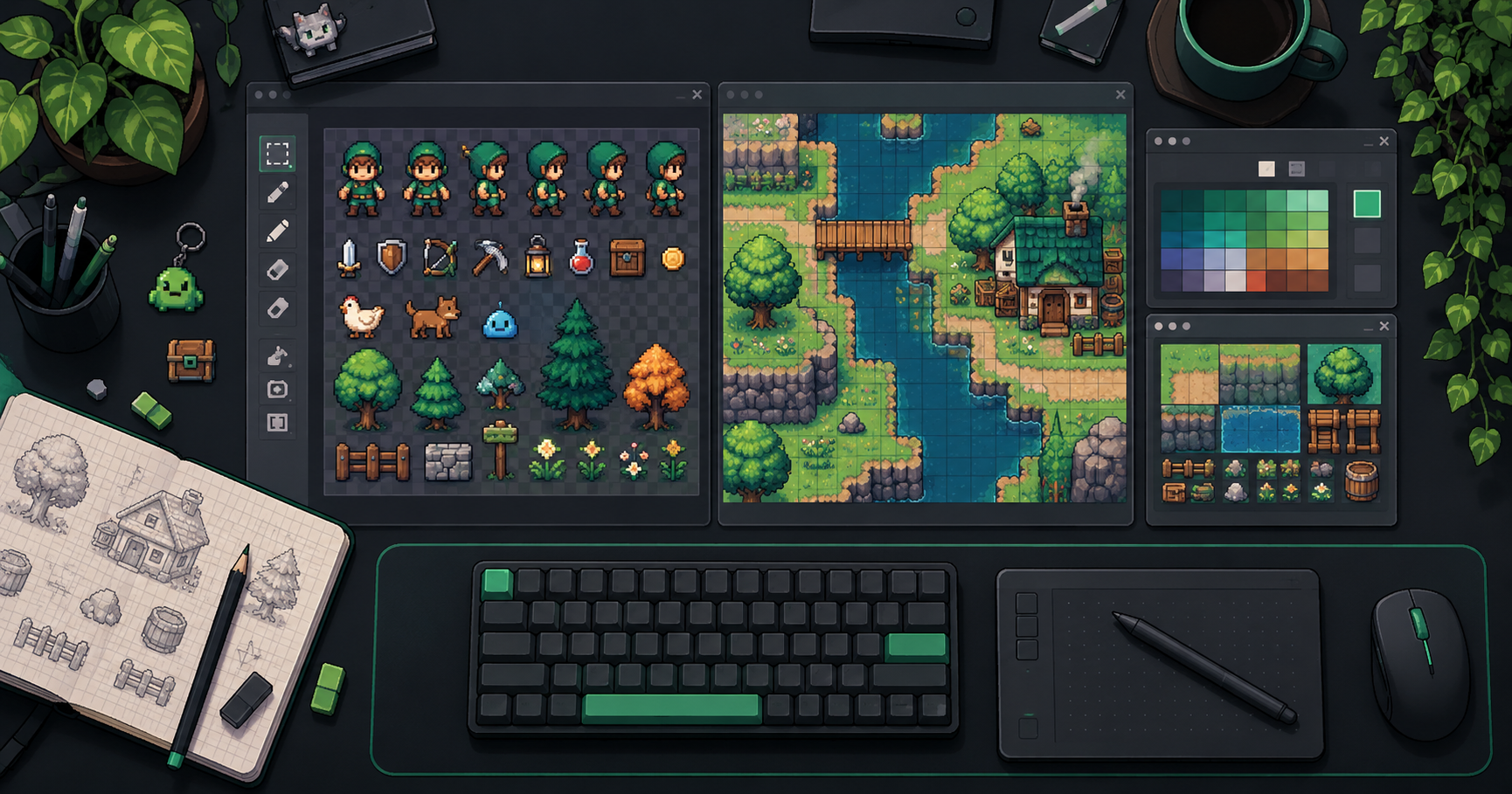
Cover image: AI-generated conceptual illustration, not a screenshot of the product.
About the author
- We operate FrameSprite, a browser tool for indie game asset workflows. We publish practical sprite-sheet and animation export guides with downloadable examples, verification methods, and explicit limitations. Editorial ownership and corrections: https://www.framesprite.com/about#workflow-team. Contact: https://www.framesprite.com/contact.
Comments
Join the discussionNo comments yet. Be the first to comment.