Transparent PNG Edge QA on Light and Dark Backgrounds
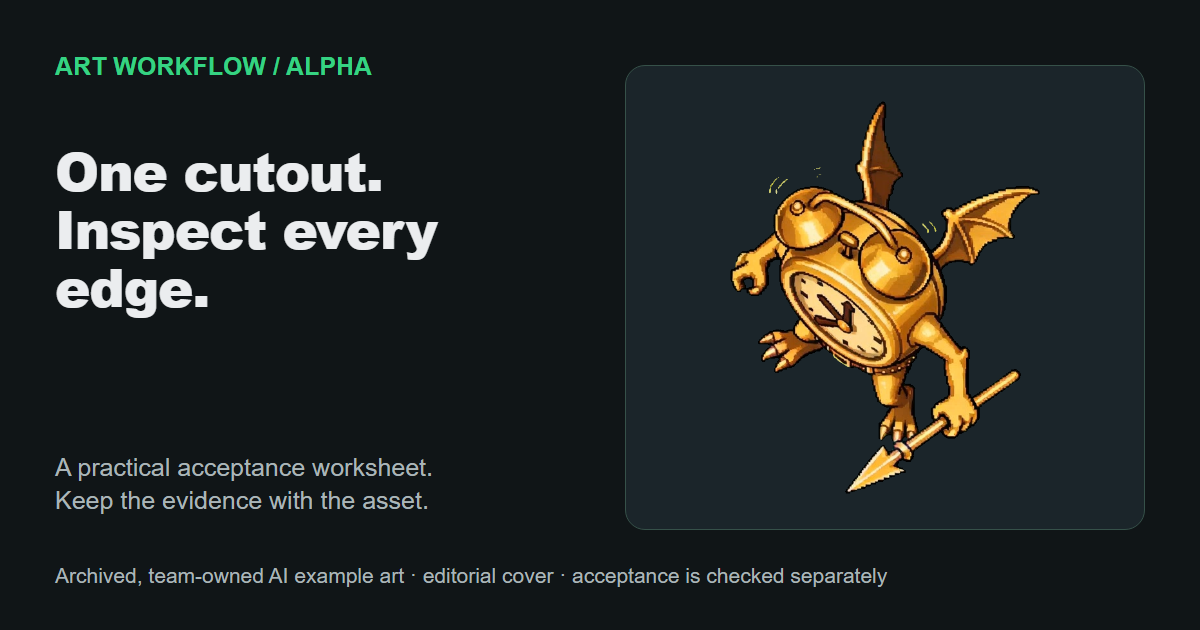
Review the same PNG over both a light background and a dark background before accepting its edges. A pale fringe can disappear on white, while a dark outline can hide on black. Passing one background is evidence about that background, not the whole cutout.
This procedure checks transparency and edge color in an existing image. It is for deciding whether a cutout is ready for a particular use, not for proving that a file extension guarantees transparency. It describes a review method; no character image or removal tool was tested for this article.
Key Takeaways
- A PNG can contain opaque artwork and background; its extension does not prove a useful cutout.
- Partial alpha is valid for antialiased edges and soft effects.
- Missing subject pixels and contaminated edge colors need different corrections.
- Preserve the original and compare sensitive details on both backgrounds after each change.
Separate opacity from edge color
Alpha controls how much of a pixel contributes to the displayed result. Color channels describe that pixel's color. Those are separate properties, which is why removing a background can leave colored fringes.
The PNG specification defines intermediate alpha values as partial transparency and describes PNG color values as non-premultiplied. In practical terms, a partly transparent edge can still carry an unwanted color that becomes visible when composited over a new background.
Do not require every edge pixel to be fully opaque or fully transparent. Hair, a curved contour, motion blur, and a glow can need intermediate opacity. A harsh threshold may remove the fringe while damaging the intended edge.
The transparent sprite sheet guide distinguishes background removal from despill. Removal changes what remains visible; despill addresses unwanted background color on retained details. That distinction should guide the diagnosis before any edit.
Set up a comparison that preserves the evidence
Use one source file, one display scale, and two solid backgrounds. Keep the image unchanged between views so the backgrounds are the only variable.
- Preserve the original PNG and identify the revision being reviewed.
- Place it over a solid light background.
- Duplicate the view with a solid dark background, using the same file and scale.
- Inspect the complete silhouette at its intended display size.
- Inspect suspect regions more closely, then return to the intended display size for the verdict.
- If the destination has a known background, inspect that as an additional view.
Write down the actual background colors rather than “light” and “dark” alone. A repeat reviewer should be able to reproduce the comparison. Also record the viewing application, since an editor view and a destination renderer may not show the same result.
A transparency checkerboard is useful for orientation, but it is a poor sole acceptance surface. Its alternating colors can conceal edge patterns. Two plain backgrounds make the relationship between the subject and its surroundings easier to inspect.
Inspect vulnerable details in a fixed order
Start with details that background removal can erase or discolor. Follow the same route in both views so a change in inspection order does not become a change in coverage.
| Region | Inspect on light and dark backgrounds | Revision risk |
|---|---|---|
| Hair and fur | Fine strands, gaps, color fringe | Thin details disappear |
| Fingers and toes | Tips, spaces between digits | Small anatomy merges or is cut away |
| Weapon and accessories | Narrow edges, holes, pointed ends | Metal edges pick up background color |
| Clothing | Color continuity and small folds | Subject colors match the removal color |
| Soft effects | Gradual opacity and intended glow color | A soft effect becomes a hard outline |
Compare a suspect area with the preserved original. A transparent gap between fingers may be correct; a transparent hole inside an intact glove may be damage. The intended subject boundary supplies the difference.
For effects, write down the intended appearance before editing. A pale aura around a character is not automatically a white halo defect. It becomes a defect when the retained color or opacity conflicts with the intended effect and destination.
Diagnose the failure before adjusting it
Classify the observed problem as retained background, missing subject, or unwanted color. More than one can occur in the same region.
| Observation | Diagnostic branch | Next step |
|---|---|---|
| A solid rectangle surrounds the subject | Background may still be opaque | Inspect alpha or transparency in an editor; confirm the actual file |
| A thin colored fringe changes visibility between the two backgrounds | Retained edge color may be contaminated | Compare edge RGB with the source background and intended subject color |
| A fingertip or strand is absent in both views | Subject alpha may have been removed | Compare against the original before further removal |
| A glow ends in a sharp contour | Partial alpha may have been clipped | Restore or revise the intended opacity transition |
| Source looks correct but the destination looks fringed | Destination handling may differ | Compare the same file and record the renderer settings before editing pixels |
These branches narrow the investigation; they do not prove the cause from a screenshot alone. Inspecting alpha separately helps distinguish an opaque background from a pale subject. Inspecting retained color helps distinguish a color fringe from an intended translucent effect.
Avoid repeatedly increasing removal strength until the edge looks clean on one background. That can trade a visible fringe for lost anatomy.
Protect subject colors that resemble the background
Green clothing, blue hair, or a bright weapon can overlap the background's color range. A color-based removal operation has no inherent understanding that one green pixel is a shirt and another is scenery. The removal guide specifically warns about subject colors that match the background. (Source)
When that overlap exists, mark the protected regions before revising the cutout. Compare those regions with the original after each change. A useful correction should address the unwanted background without silently deleting the matching subject area.
Save each accepted revision separately. If a correction damages a protected region, return to the preserved source or prior revision and change the approach. Do not depend on memory to reconstruct lost detail.
Keep the verdict tied to the file and destination
Record the actual format being reviewed. GIF transparency uses a transparent color index, which differs from PNG's alpha representation. A GIF preview cannot establish that a PNG's partial-alpha edges are correct. (GIF89a specification)
Copy this acceptance record for each candidate:
| Record | Value to enter |
|---|---|
| File and revision | Exact PNG name; revision identifier |
| Preserved original | Source reference and location |
| Review setup | Application; display scale; light and dark background colors |
| Destination | Intended display size and background |
| Fine-detail coverage | Hair, digits, accessories, clothing, effects reviewed |
| Alpha findings | Retained background, missing details, or opacity transitions |
| Color findings | Fringe location and expected edge color |
| Protected colors | Subject regions at risk from removal |
| Decision | Accept / revise / needs destination review |
| Follow-up | Specific regions; correction; reviewer; date |
Accept when the intended silhouette and effects remain intact and the edge behavior is suitable on both review backgrounds and the intended destination. If a defect remains, name the region and whether it concerns opacity or color. That gives the next editor a correction task that can be verified without repeating the whole diagnosis.
The FrameSprite Workflow Team prepared this source-based checklist with AI drafting assistance. The team operates the linked sprite product and benefits commercially from it. The checklist is not a claim of measured character-cutout quality. Report errors or missing context through the contact page.
About the author
- We operate FrameSprite, a browser tool for indie game asset workflows. We publish practical sprite-sheet and animation export guides with downloadable examples, verification methods, and explicit limitations. Editorial ownership and corrections: https://www.framesprite.com/about#workflow-team. Contact: https://www.framesprite.com/contact.
Comments
Join the discussionNo comments yet. Be the first to comment.