Godot SpriteFrames Import QA: Verify the Animation You Actually Built
Accept a Godot sprite import when the SpriteFrames resource matches the intended frame selection, order, durations, loop behavior, and node placement. A texture appearing in the editor proves only that the editor can display it. It does not establish that the animation you built matches the source contract.
This checklist starts with an already reviewed export. It focuses on AnimatedSprite2D and the SpriteFrames editor, using Godot's current stable documentation. It does not repeat image cleanup, alpha repair, or source-frame alignment work, and it reports no new Godot runtime test.
Key Takeaways
- Keep sheet rows and columns separate from animation frame count.
- Verify the selected cells and their order inside the actual SpriteFrames resource.
- Check animation FPS, relative frame duration, playback speed, and loop mode together.
- Record placement settings and runtime evidence before marking an import accepted.
Bring a grid contract into the import
Write down the expected sheet layout before opening the cell selector. At minimum, record the source revision, grid columns and rows, occupied cells, intended frame order, and animation names. Add intended FPS, holds, and loop behavior so that acceptance has a reference. Keep the reviewed export evidence alongside this contract; the 12-frame PNG export QA example illustrates the separate file-level checks that should precede an engine import.
A sheet's total cell capacity is not necessarily the length of any one animation. Empty cells, several actions on separate rows, or unused poses can make those numbers different. A selector that divides a texture cleanly can still produce the wrong animation if you select every cell without checking the layout.
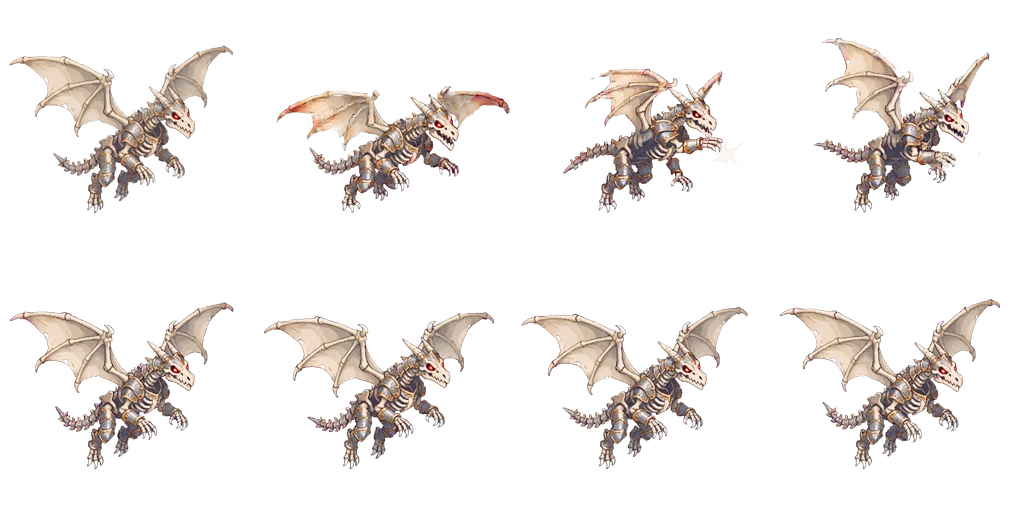
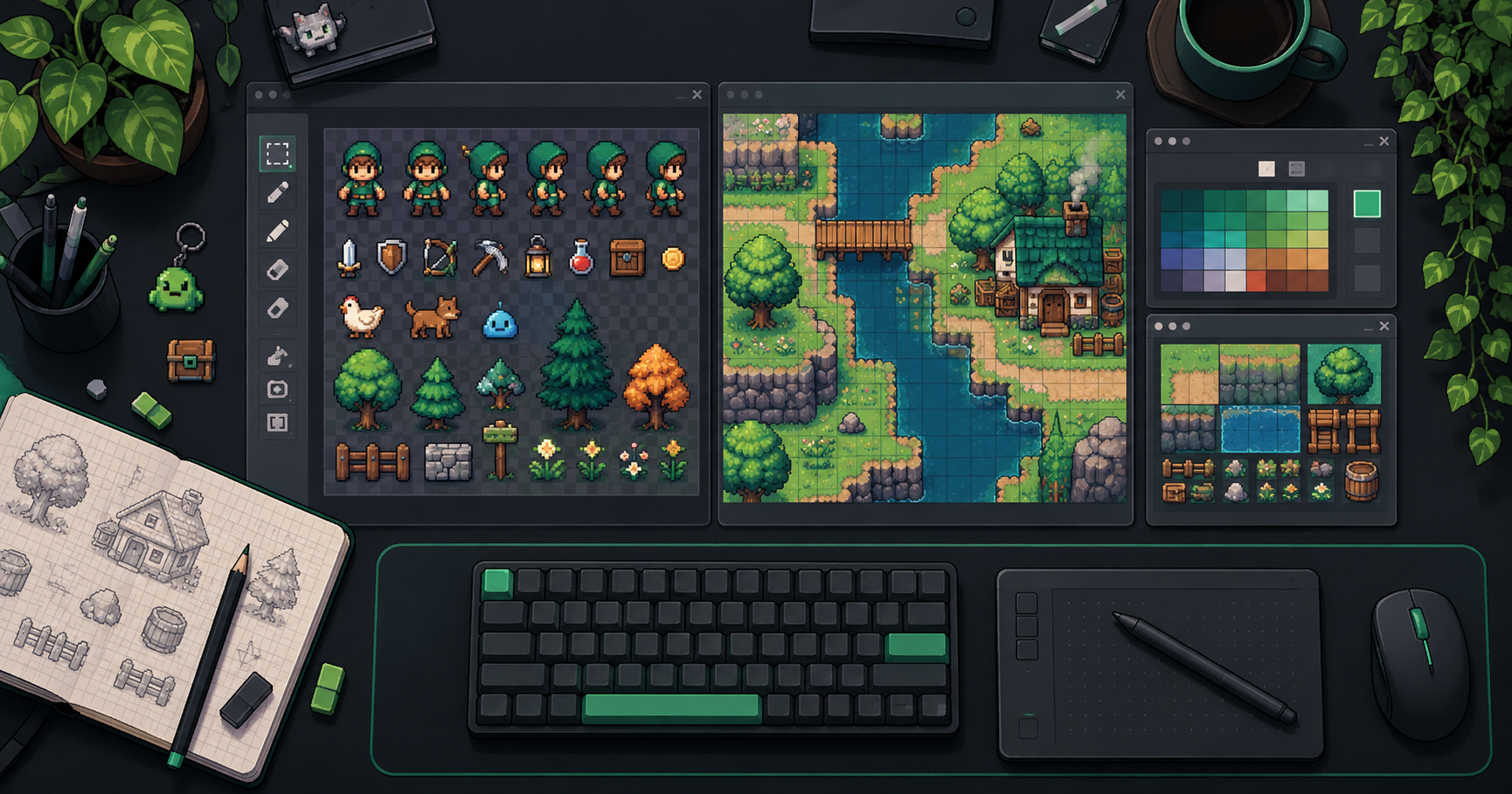
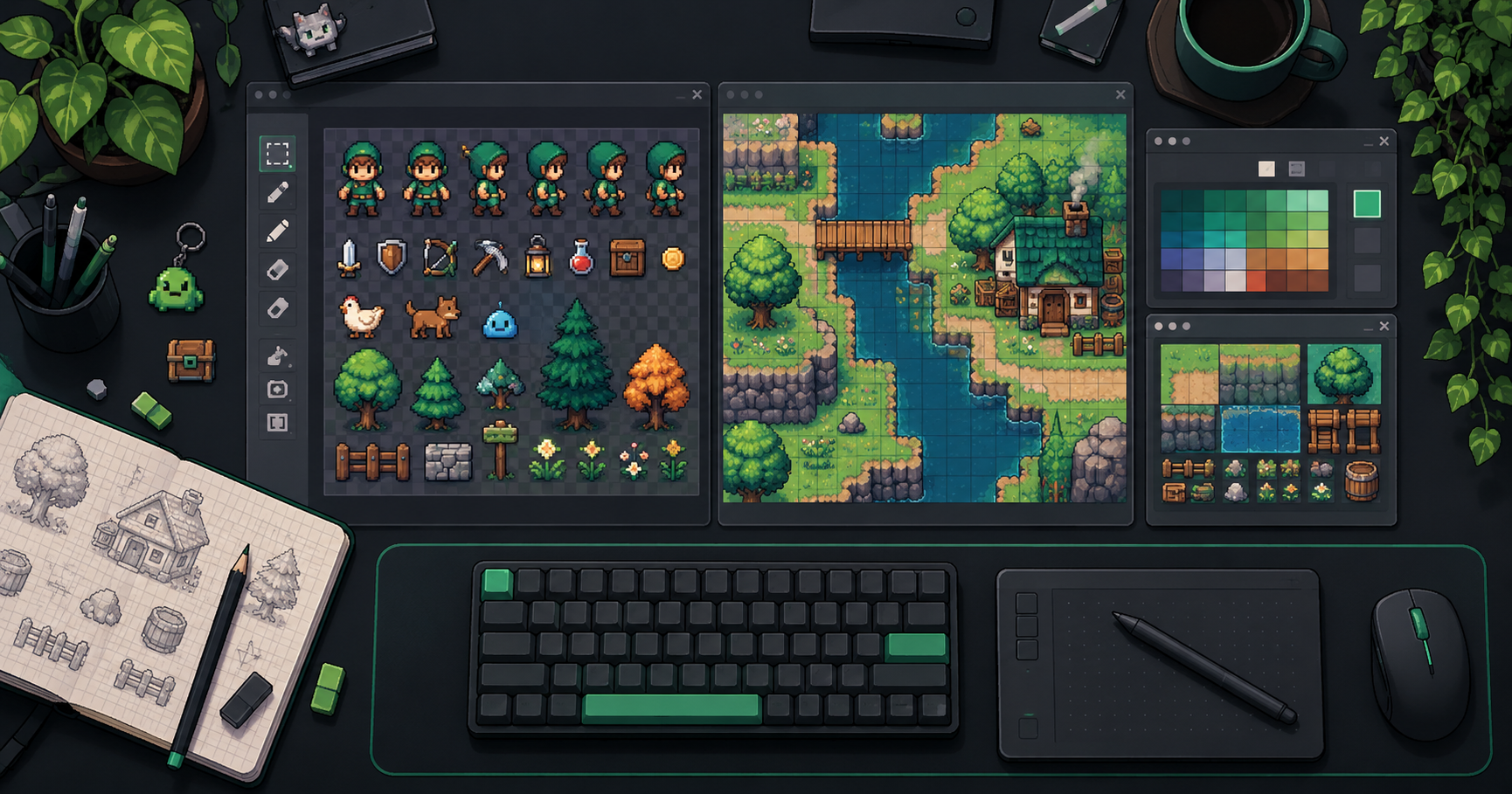
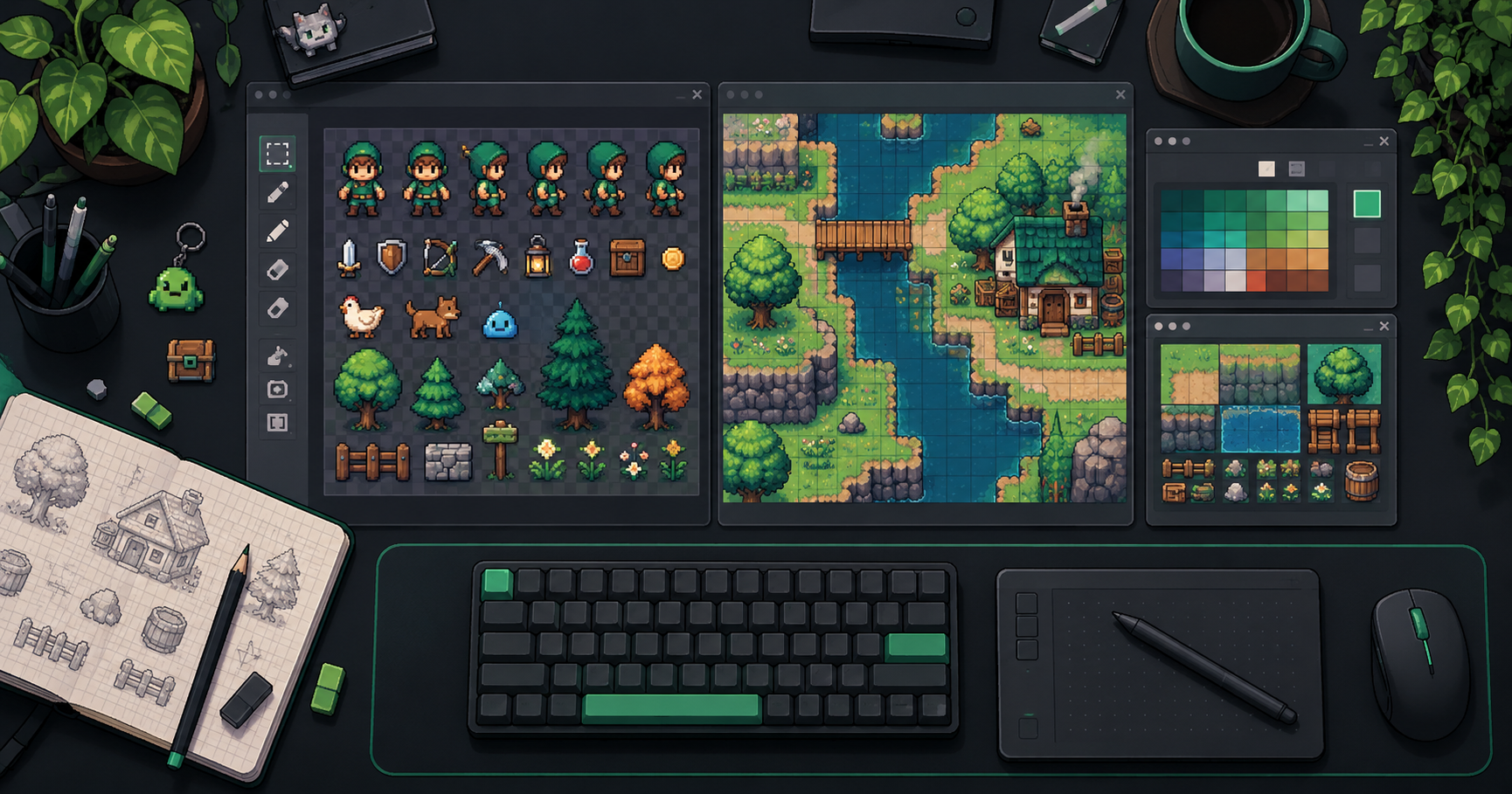
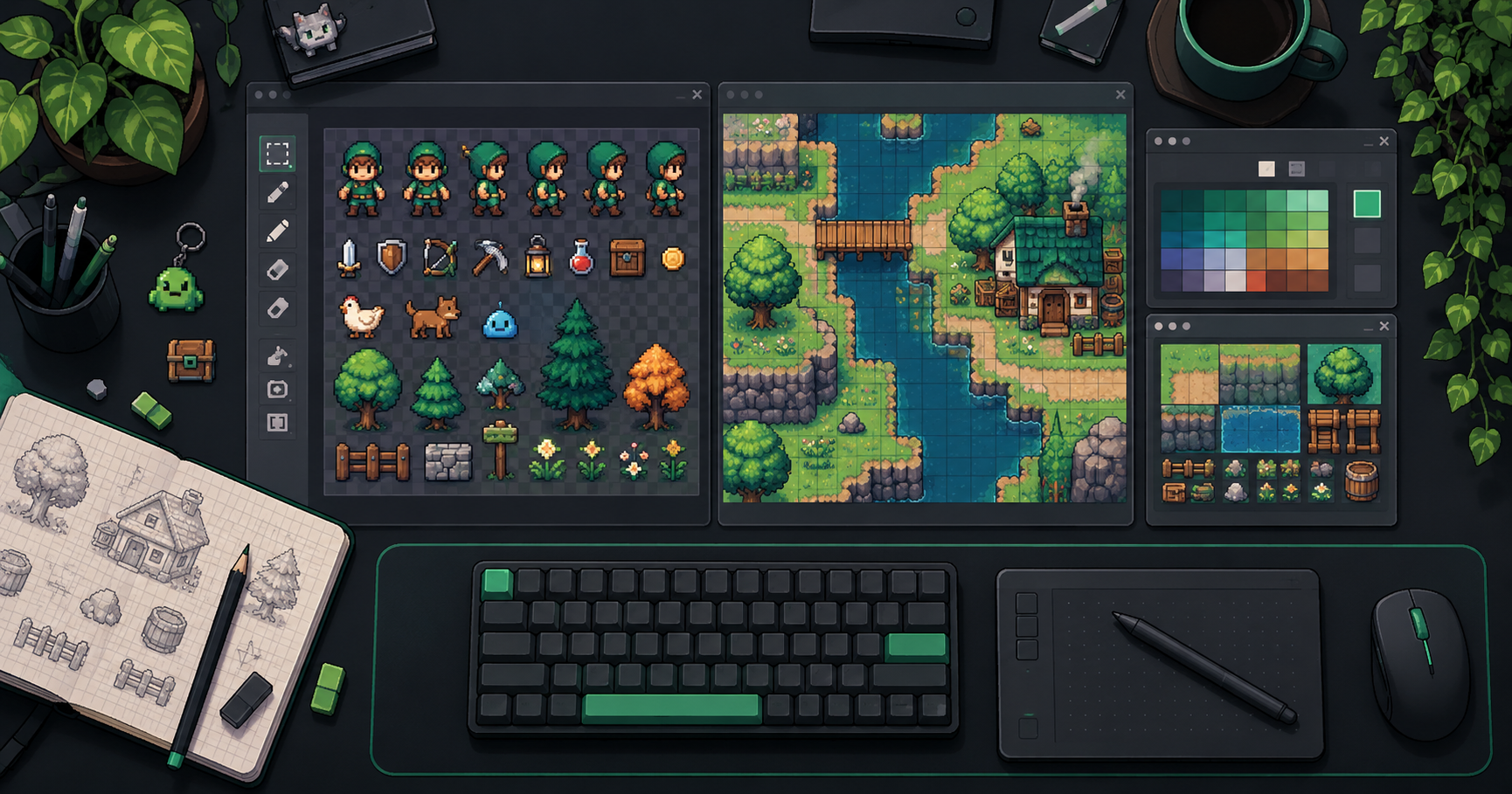
Public source-material illustration, not a Godot screenshot or proof that this sheet passed an import test. No dimensions are inferred from the image.
Use a compact contract like this:
Source file and revision:
Grid: ____ columns x ____ rows
Occupied cells and their action labels:
Animation name:
Ordered cells or ordered source filenames:
Expected played frame count:
Base FPS and any longer holds:
Loop intent: one-shot / forward loop / ping-pong:
Expected placement reference:
If the export contract is missing, establish it first. The sprite-sheet preparation guide provides background on canvas alignment and spacing choices to document before import. Guessing the grid and then judging the result against that guess creates a circular acceptance test.
Verify the SpriteFrames resource on AnimatedSprite2D
Select the intended AnimatedSprite2D node and confirm which SpriteFrames resource it uses. Godot's AnimatedSprite2D class reference identifies sprite_frames as the resource containing the animation frames. This is the resource whose contents you need to inspect.
Godot's 2D sprite animation tutorial describes creating a new SpriteFrames resource, adding separate images, and adding frames from a sprite sheet. Choose the path that matches the reviewed input. For separate images, verify the imported sequence rather than relying on filename appearance. For a sheet, open the sheet-frame selection interface and set its horizontal and vertical divisions to the agreed grid before selecting cells.
Do not apply Sprite2D Hframes and Vframes instructions to this task. AnimatedSprite2D uses its SpriteFrames resource for animation frames. Mixing the two workflows can leave an apparently sensible grid setting on the wrong object while the actual animation remains incorrect.
If editing an existing resource, preserve a recoverable project version first. Record whether another node uses that same resource before making changes, so the reviewer knows the scope of the edit.
Check names, selected cells, and playback order
Accept frame selection against the ordered contract, not against a moving preview alone. Compare the first, last, and every intervening selected frame with the intended action. Confirm that no cell from a neighboring action or an empty area slipped into the sequence.
Then verify the animation name. A correctly assembled animation under an unexpected name can still fail when the game requests a different animation. Record the exact name and case used by the project, and check the animation list for an accidental default or duplicate entry.
Use these diagnostic branches when the preview is wrong:
- Every frame shows the wrong region: revisit the sheet divisions and source selection before changing timing.
- One unexpected pose interrupts the action: compare that entry with the selected cells and order.
- The action plays correctly in the editor but the game shows another action: inspect the resource and animation selected by the actual node at runtime.
- An empty entry creates a blink: confirm whether the cell is part of the intended sequence before removing it.
Keep the source-frame count, selected-frame count, and played order explicit. Their agreement provides stronger evidence than a screenshot of a populated editor panel.
Audit timing as a combination of settings
Animation FPS alone does not determine every frame's display time. SpriteFrames stores a relative duration for each frame, while AnimatedSprite2D exposes playback speed controls. The stable SpriteFrames reference gives the actual-duration relationship:
actual_duration = relative_duration / (animation_fps * abs(playing_speed))
For an illustrative calculation, at 10 animation FPS and an absolute playing speed of 1, a relative duration of 2 gives a 0.2-second frame. A relative duration of 1 gives 0.1 seconds under those same conditions. These are arithmetic examples, not measurements from a project.
Check longer holds intentionally. A frame that appears to pause may have a larger relative duration, a repeated entry, or both. Record which representation the resource uses. Use the animation timing calculator to review the intended played-entry count and total duration, then compare that intent with the resource and playback settings. If the entire animation is unexpectedly slow, check the effective playback speed as well as the animation FPS. AnimatedSprite2D's speed and playback properties explain why a correct resource can play differently under a node's runtime controls.
Check loop intent separately from speed. Current stable SpriteFrames documentation describes loop modes, including ping-pong behavior; older project versions can expose different controls and APIs. Use the controls and documentation for the Godot version you are accepting. This checklist intentionally avoids version-independent setter code.
Verify centered placement and offset in context
Correct frame selection does not guarantee correct placement in the scene. AnimatedSprite2D's centered and offset properties affect how the sprite sits relative to its node, as documented in the node reference.
Check the animation against the project's placement reference, such as a ground line or interaction origin. Inspect it in the intended scene context and at the scale used for acceptance. Record centered, offset, and the relevant transform settings so someone else can reproduce the view.
If all frames sit consistently too high, inspect node placement and these settings first. If only one frame shifts relative to the character's own reference point, preserve that distinction and return the source or cell-selection question to the export review. A node-wide offset cannot independently fix one bad pose.
Keep a reproducible import acceptance record
Save editor evidence for resource contents and playback evidence for actual behavior. A still image can show selected frames or settings, but it cannot prove timing or loop continuity.
Godot version and project revision:
Source asset and reviewed export revision:
AnimatedSprite2D node path:
SpriteFrames resource path:
Animation name and case:
Grid columns/rows or ordered image list:
Expected / actual selected frame count:
Order checked against contract: yes / no:
Animation FPS:
Per-frame relative duration exceptions:
Effective playback speed during test:
Loop intent / observed behavior:
Centered / offset / relevant transform:
Placement reference:
Editor settings evidence:
Runtime playback evidence:
Decision: accept / revise / blocked:
Unverified conditions and owner:
Mark the import accepted only for the conditions actually checked. A resource review can establish what was assembled; runtime observation establishes how the application played it under the recorded settings. Keep those two conclusions separate in the handoff.
About the author: The FrameSprite Workflow Team documents sprite production workflows for its own product. This draft used AI writing assistance and source-based editorial review; it reports no new engine test. Editorial ownership · Contact and corrections.
About the author
- We operate FrameSprite, a browser tool for indie game asset workflows. We publish practical sprite-sheet and animation export guides with downloadable examples, verification methods, and explicit limitations. Editorial ownership and corrections: https://www.framesprite.com/about#workflow-team. Contact: https://www.framesprite.com/contact.
Comments
Join the discussionNo comments yet. Be the first to comment.