Sprite Sheet Export QA: A 12-Frame PNG Audit
Originally published by the FrameSprite Workflow Team at framesprite.com. We operate the linked browser packer. This article was prepared with AI writing assistance and checked against the downloadable export, source frames, evidence record, and vendor documentation. The character artwork is our own AI-generated sample.
Quick answer. A sprite-sheet export audit checks that a packed image still contains the intended frames, order, geometry, and transparency before engine import. Confirm four separate things: the grid divides into whole cells; every cell contains its intended source frame; transparency survives; and the engine uses the intended playback speed and pivot. A correct PNG can still animate badly if the last two settings are wrong.

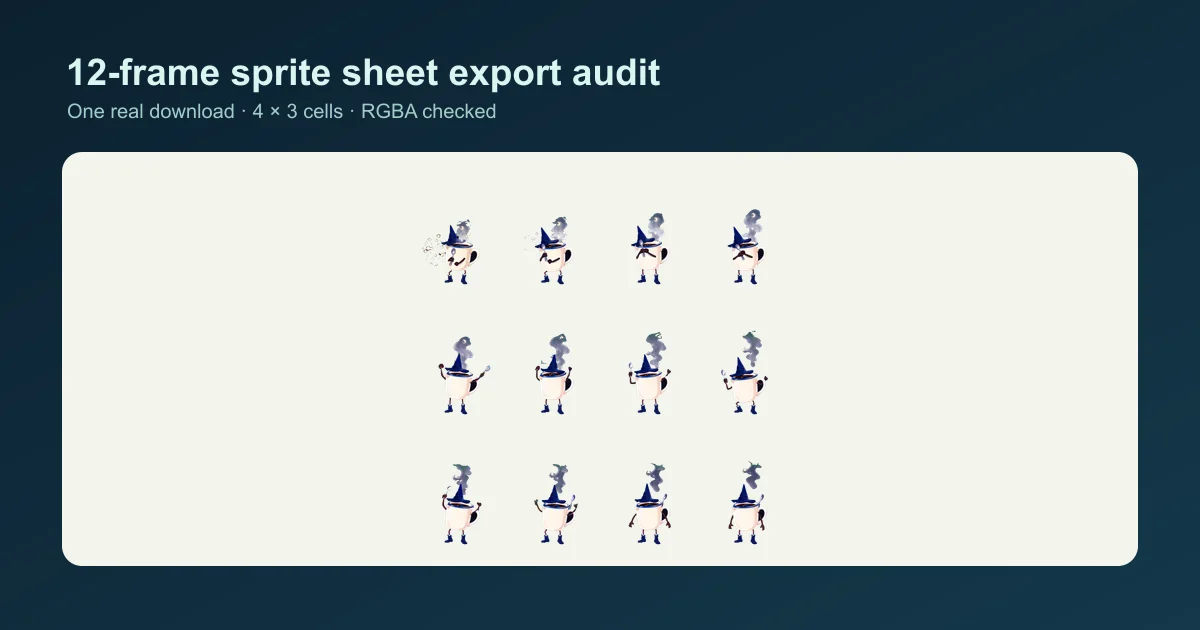
The actual downloaded sheet from the measured example. The 1200 × 630 social preview is a separately composed derivative; this full-size PNG is the evidence image.
This is an audit of one real export, not a benchmark of sprite-sheet tools or a promise about every input. The example starts with twelve numbered, transparent character frames. Its four-column, three-row output is a 3328 × 3360 PNG. We compared the RGBA pixels of all twelve output cells against their corresponding source files; the largest channel difference was zero in this sample. Download the twelve source frames, the actual exported PNG, and the per-cell evidence record to check the result yourself. The test used our own AI-generated character art; the packer arranged existing frames rather than generating new motion.
| Audit question | Observed in this sample | What you should verify in your own export |
|---|---|---|
| Grid | 4 columns × 3 rows | Rows equal ceil(frame count / columns) |
| Cell geometry | 832 × 1120 px | Sheet dimensions and padding match your declared cells |
| Sheet geometry | 3328 × 3360 px | Whole-number boundaries, no unexpected margin |
| Transparency | RGBA alpha values include 0 and 255 | Transparent and opaque pixels survive; inspect partial-alpha edges too |
| Contents | 12 of 12 cells matched the source pixels | First, middle, last, and ideally every cell match their inputs |
Start with an explicit frame order
Name frames before packing them. In our test, frame_000.png through frame_011.png made the intended sequence easy to inspect. The browser packer sorts selected images by filename; do not assume that your operating system's file-picker order will become the animation order. Its current page documents the pack, slice, and resize actions separately. For this task, use Pack a PNG sequence, not the slicer.
Open the source files on a checkerboard and check that they belong to the same action. A numbered sequence can still contain a duplicate pose, a missing pose, or a different camera angle. Packing faithfully preserves such mistakes. Keep a source folder and a copy of the ordered filenames so that a surprising playback result can be traced back to a specific input.
Check the grid math before inspecting the artwork
For twelve frames at four columns, ceil(12 / 4) = 3 rows. With zero padding and a common 832 × 1120 cell, width is 4 × 832 = 3328 and height is 3 × 1120 = 3360. These values match the downloaded file in our test. Each frame is located at column index % 4 and row floor(index / 4), starting at index zero.
Padding changes those equations. If a tool inserts between-cell padding p and no outer margin, width is columns × cell width + (columns − 1) × p; height uses rows in the same formula. Do not divide a padded sheet evenly and expect the correct cell width. Record the actual padding value and configure your engine's slicing to match it. Our zero-padding case is a measured example, not a universal recommendation for filtered textures.
The grid-making guide explains canvas alignment and spacing choices. This article focuses on the separate question of whether the exported file actually meets its handoff contract.
Reproduce the twelve-cell check
The published evidence bundle contains frame_000.png through frame_011.png, the unaltered exported sheet, and a JSON record of the settings, source file hashes, and all twelve comparison results. The sheet's SHA-256 is 12c5349cbd4fa83867170b5f5e207442594ef435b183d756891a4bec7513db61. Verify the downloaded file against that digest before comparing cells.
Decode both inputs and output to RGBA without resizing or color-profile normalization. For input index i, crop the 832 × 1120 output cell at x = (i % 4) × 832, y = floor(i / 4) × 1120. Compare the crop with its source PNG using a three-digit, zero-padded index: for example, frame_006.png for i = 6. Compare the RGBA pixels and record the largest absolute difference across the four channels. The JSON record reports zero for each of the twelve cells, including frame zero, frame six, and frame eleven. A nonzero value in your reproduction calls for checking the file digests and decoding method before inferring that the export changed.
This test checks file contents, not whether the action reads well in motion. The source frames are available so the result is independently inspectable, while the artwork remains identified as FrameSprite's own AI-generated sample.
Verify alpha and every cell, not only the preview
The downloaded sample is an RGBA PNG whose alpha channel contains both transparent and opaque pixels. That establishes that the sheet has transparency; it does not by itself prove that every edge is clean. Examine a dark background and a light background. Look for opaque rectangles, colored fringes, and inconsistent character baselines. The W3C PNG specification describes PNG's alpha channel; a file extension alone is not proof that a particular image contains the alpha data you need.
For a stronger content check, crop each logical cell from the exported sheet and compare it with the corresponding source PNG at the same dimensions. Our recorded test compared all twelve RGBA cell crops channel by channel and found no differences. That is evidence for this one export. If your input canvases differ, first check the packer's centering behavior and compare the placed image region instead of assuming every source fills a whole cell. The tool page says its packer uses the widest and tallest inputs as a common cell and centers smaller images.
If even one cell is wrong, inspect the filename sequence, input count, chosen columns, and any padding before changing engine animation settings. An engine cannot restore a frame that never made it into the sheet.
Import the tested grid into an engine
In Godot, create an AnimatedSprite2D and a SpriteFrames resource, then choose Add frames from a Sprite Sheet. Godot's 2D sprite animation guide shows the sheet picker, horizontal and vertical frame counts, selection of the intended cells, and the separate Speed (FPS) control. For this exact sheet, enter four images horizontally and three vertically, select the twelve cells in order, and then set FPS according to the animation you want. The PNG does not encode that playback decision.
In Unity, import the texture as a sprite with Sprite Mode: Multiple and use the Sprite Editor to cut the grid into sprites. Unity documents both opening the Sprite Editor and grid-based slicing options. For this no-padding sample, use the measured 832 × 1120 cell geometry or the matching four-by-three grid, inspect the first and last slices, and set animation timing in the engine. Review the pivot or origin against your game's ground contact or rotation point; the packing operation did not choose a gameplay pivot.
The engine steps above are handoff instructions based on the vendors' documentation. We validated the exported PNG and its cells; we did not run this specific twelve-frame sample through a Unity or Godot project. Treat an in-engine playback check as the final acceptance step in your own project.
A five-step acceptance pass
- Read the sheet's pixel dimensions and color mode from the downloaded file.
- Recalculate rows, columns, cell size, padding, and any outer margin from the settings you actually used.
- Inspect frame zero, one middle frame, and the last frame on light and dark backgrounds. Compare every cell if the asset is release-critical.
- Import the sheet with the same grid settings. Verify that the engine shows twelve unique intended frames in order.
- Set FPS, loop behavior, and pivot in the engine. Watch the first-to-last seam at game scale; a correct export does not guarantee a good loop.
If the grid and alpha checks pass but the character still jumps, the next question is visual alignment, not file corruption. Use the sprite-animation jitter guide to separate changing artwork bounds from a changing origin. If the loop pauses only at the seam, review duplicated endpoints with the loop-stutter guide.
What this test does not prove
The twelve-frame result proves a narrow claim: with these source PNGs and settings, the exported grid dimensions and all twelve cell pixels matched the recorded inputs. It does not establish a universal error rate, compare performance against separate textures, validate every browser, or prove engine-ready animation timing. The transparent zero-gap grid may also need different spacing or filtering choices in a different renderer.
For a reusable process, keep the ordered source sequence, the exported PNG, the packing settings, and the engine's FPS/pivot settings together. That small record makes the next import failure diagnosable rather than a guessing exercise.
Editorial note: The FrameSprite Workflow Team authors this article and operates the linked browser tool; that page describes its verification and corrections policy. The character art in the measured sample was AI-generated by the team. Measurements are from one published export and were checked against its source frames; no third-party customer outcome or comparative speed claim is asserted. For corrections, use the site's contact page.
About the author
- We operate FrameSprite, a browser tool for indie game asset workflows. We publish practical sprite-sheet and animation export guides with downloadable examples, verification methods, and explicit limitations. Editorial ownership and corrections: https://www.framesprite.com/about#workflow-team. Contact: https://www.framesprite.com/contact.
Comments
Join the discussionNo comments yet. Be the first to comment.